Add, replace and remove photos
Upload photos from your computer or phone into any photo spot. Belacsbox makes them load fast on every screen and removes hidden location details for your privacy.
Click the section that should have a photo (for example the top section), on the left or on the page itself.
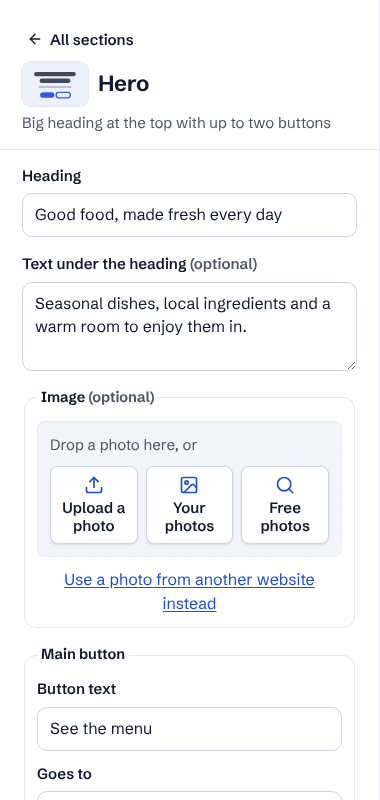
Drag a photo from your computer onto the photo box, or click Upload a photo and pick one. On a phone or tablet you can choose from your photos or take a new one with the camera.
Your photo shows in the box straight away while the bar fills: Uploading, then Getting it ready. Once it's ready, it shows on your page too.
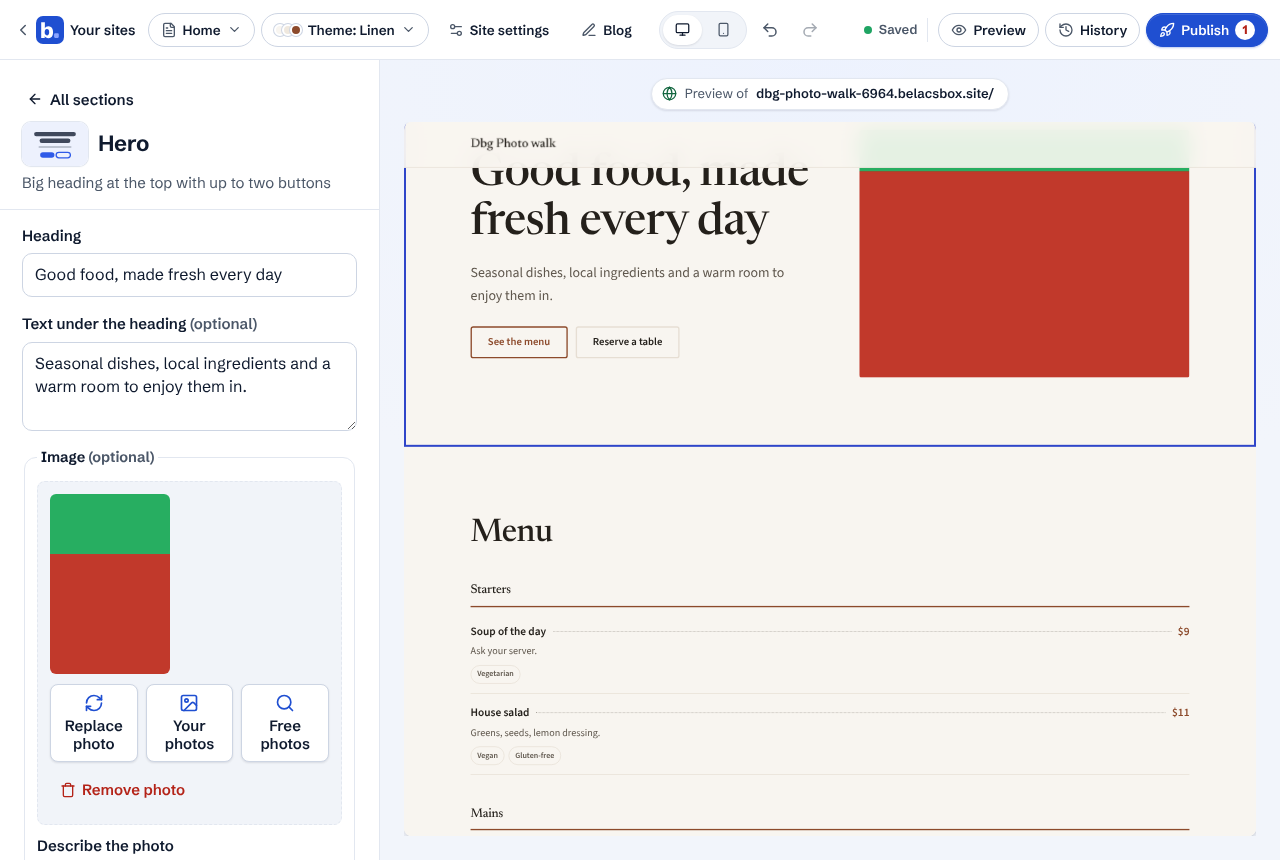
Under Describe the photo, say in a few words what's in it, for example: Fresh sourdough loaves on a wooden counter. It's read aloud to people who can't see the photo and helps search engines find you. Leave it empty only if the photo is just decoration. A section or blog post with a photo that has no description shows a reminder (in orange), and so does Publish; it doesn't stop you publishing.
To use a different photo, click Replace photo. To take a photo off this spot, click Remove photo, the red link under the buttons (spots that must have a photo don't show it).
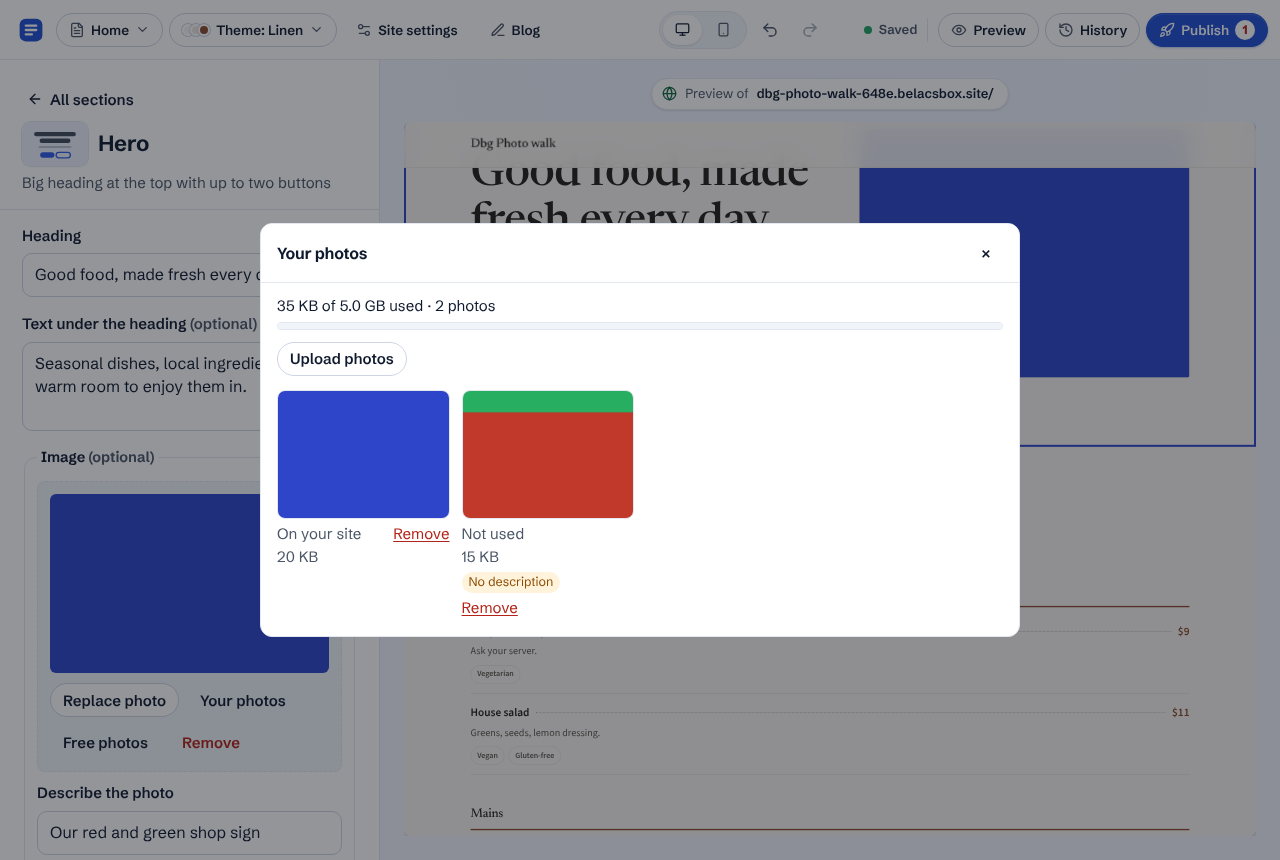
To use a photo you uploaded before, click Your photos and click the photo. Every photo you upload to this site is kept there, so you never upload the same one twice.
- You can upload JPEG, PNG, WebP, AVIF, GIF and iPhone photos (HEIC). Up to 10 MB per photo and 5 GB per site. Moving pictures (GIFs) are shown as a still photo.
- Belacsbox checks every file is a real photo. Other files, including SVG drawings, can't be uploaded.
- For your privacy, hidden details inside photos are removed when you upload: the location where the photo was taken, the camera or phone, and the date. Photos taken sideways on a phone are turned the right way up.
- Each photo is saved in several sizes and modern formats, so phones download a small file and big screens get a sharp one.
- To see how much space your photos use, or to remove photos you no longer need, open Site settings and click Your photos. If a photo is still on your site, you're told where first. Photos marked No description there have no description yet.
- Removing a photo doesn't change your live site until you publish again, and History can still bring back a version that used it.
- Like your words and links, every photo goes through our safety checks before it can appear on a live site. See Publishing and the safety checks.
- Only upload photos you took yourself or have the right to use.