Edit, add, move and delete sections
Each page is a stack of sections: a hero (the big heading at the top), your services, reviews, a contact form and so on.
The page's sections are listed on the left, top to bottom. Each one has a small picture of what that kind of section looks like on your site, its name (for example Hero, Gallery or Contact form) and its own heading.
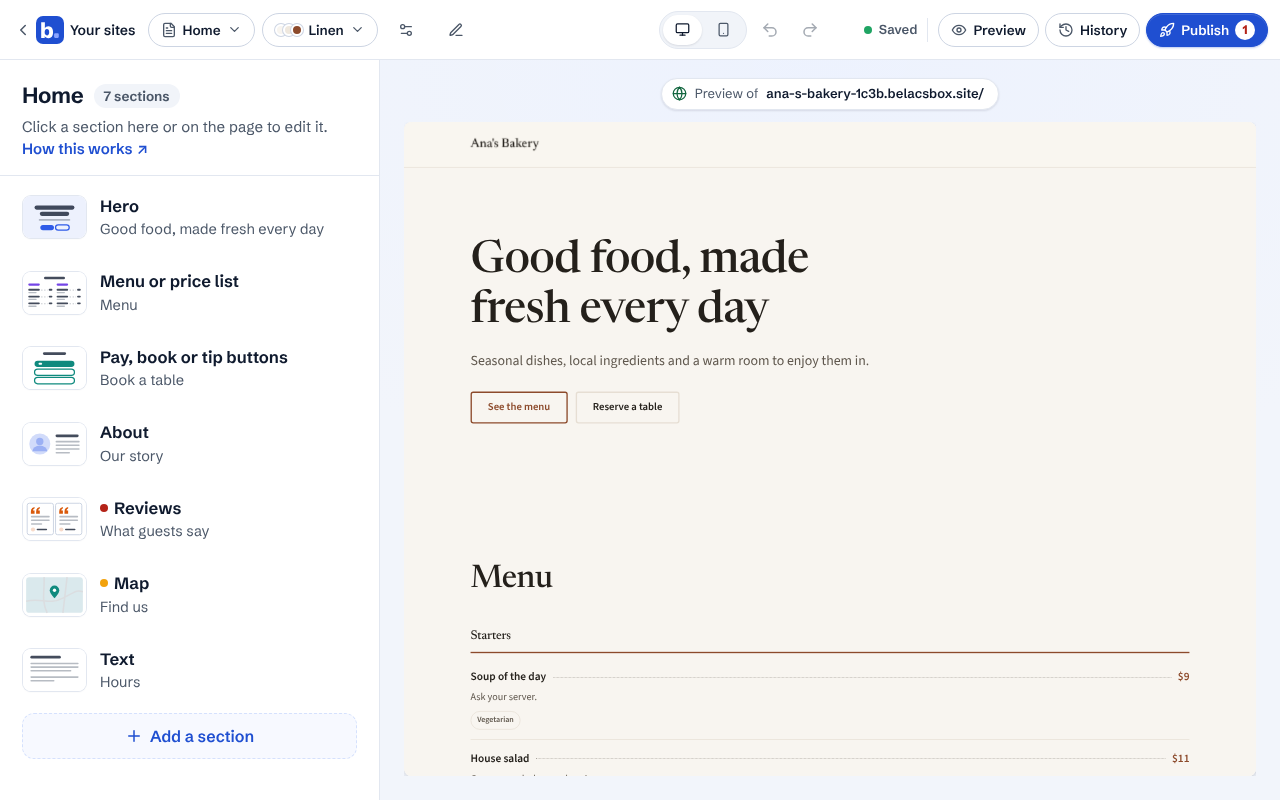
Click a section to edit it. Its fields open on the left; the preview updates as you type.
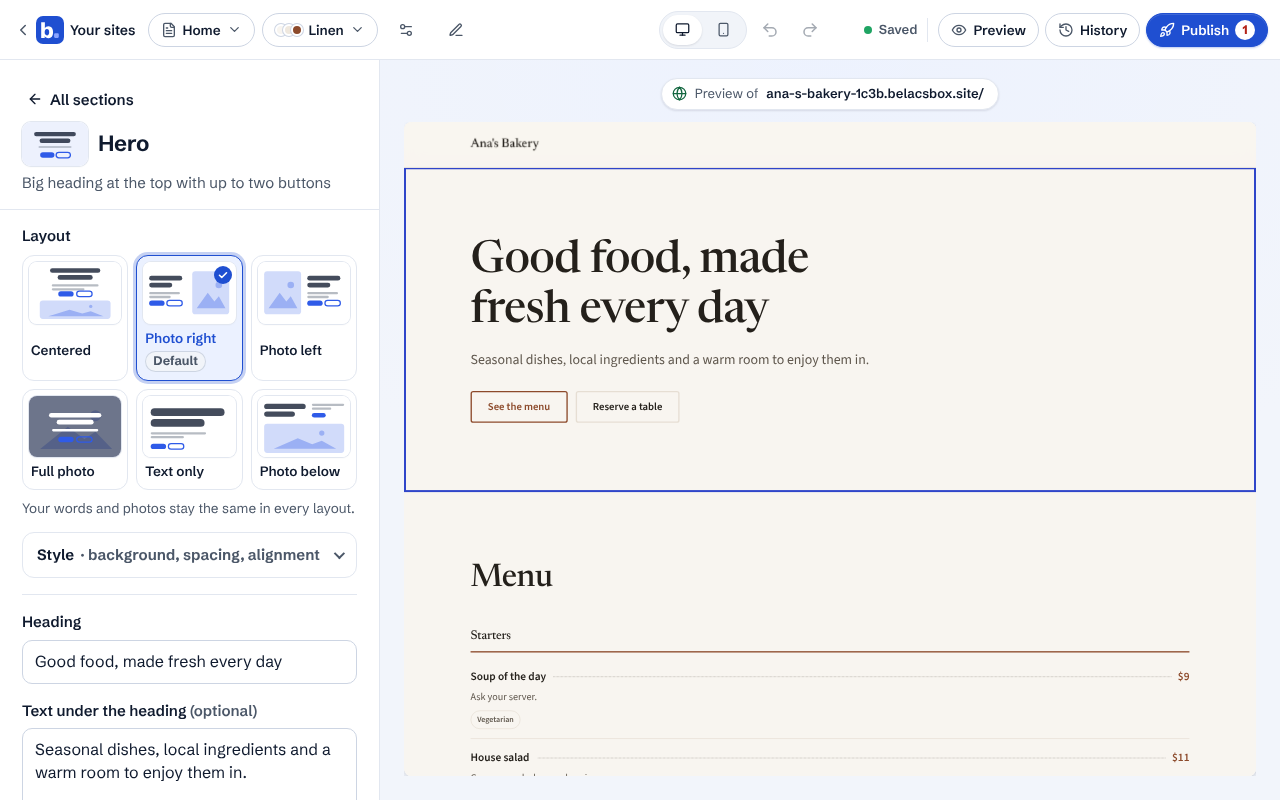
Click ← All sections to go back to the list.
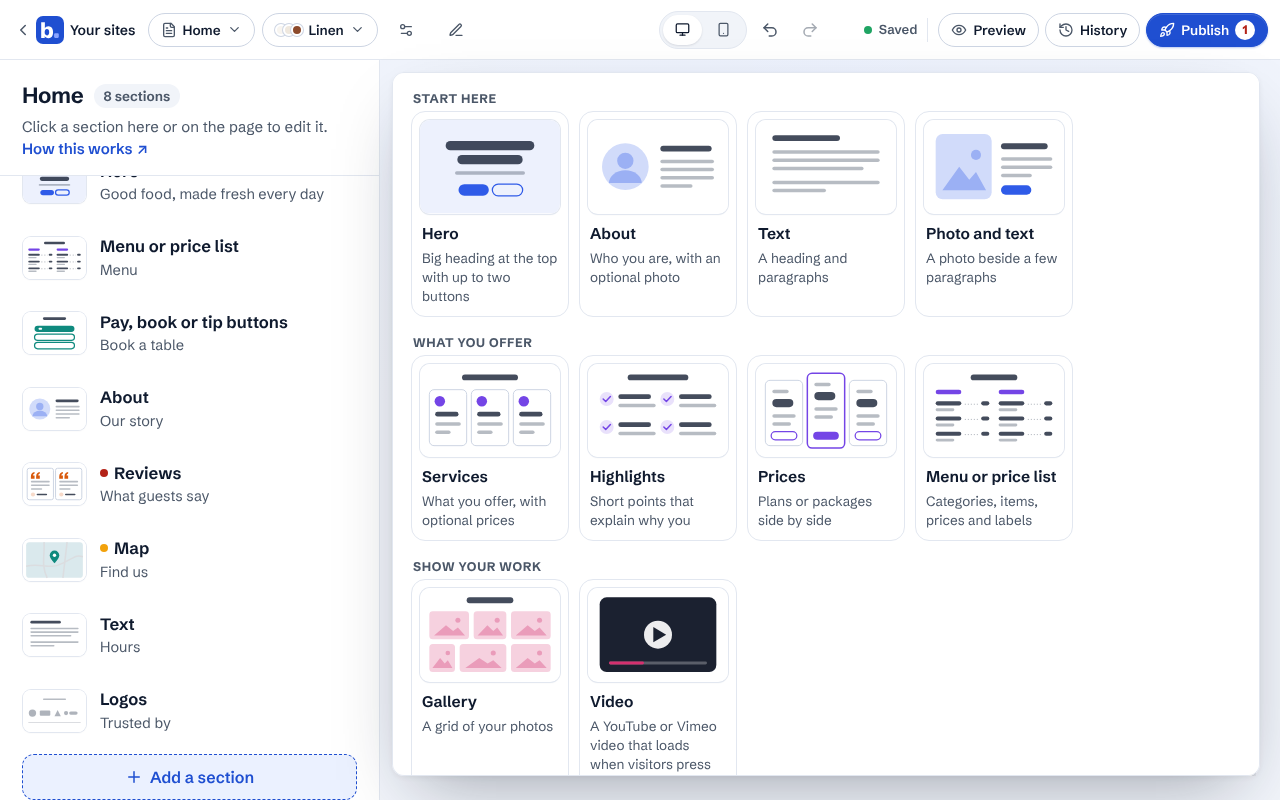
Click Add a section. A gallery opens with a small picture of every kind of section, so you can see what each one looks like before you add it. They are grouped by what they are for: Start here, What you offer, Show your work, Build trust, Get in touch, Blog. Click one to add it.
To move a section, drag it in the list, or point at it and use the ↑ and ↓ buttons that appear on it. ⧉ copies it, × deletes it. On a phone or iPad, tap ⋯ beside the section for the same choices.
Deleted something by mistake? Click Undo in the message that appears, or the Undo arrow at the top.
- A page can hold up to 40 sections.
- Only use real reviews from real customers, with their permission.