Change a section's layout and style
Every section comes in several modern layouts, like a photo on the left or right, a full-width photo with your words on top, or big words only. Pick one in a click: your words and photos stay exactly the same.
Click a section, on the left or on the page itself.
At the top of its panel, under Layout, click one of the small pictures. Each picture shows how that layout arranges your section. The page on the right changes straight away. The layout marked Default is the one your theme uses on its own.
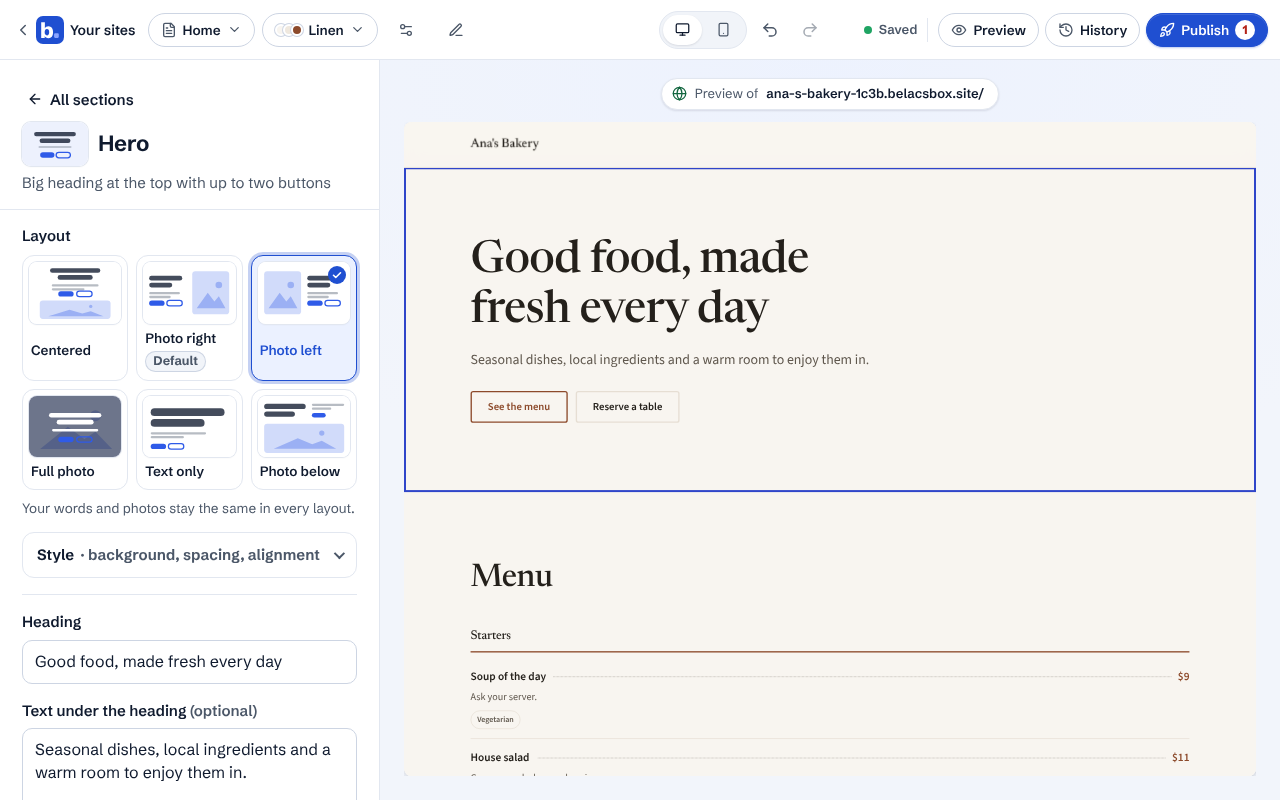
Try as many as you like: your words, photos and buttons stay the same in every layout. A layout that doesn't show a photo (like Text only) keeps your photo saved for when you switch back.
Click Style to change the section's background, the space above and below it, and where its text sits. Background can be your theme's own, Light, Dark, Brand colour (your theme's main colour) or Photo. With Photo, pick the picture; a dark shade goes over it so the words stay easy to read.
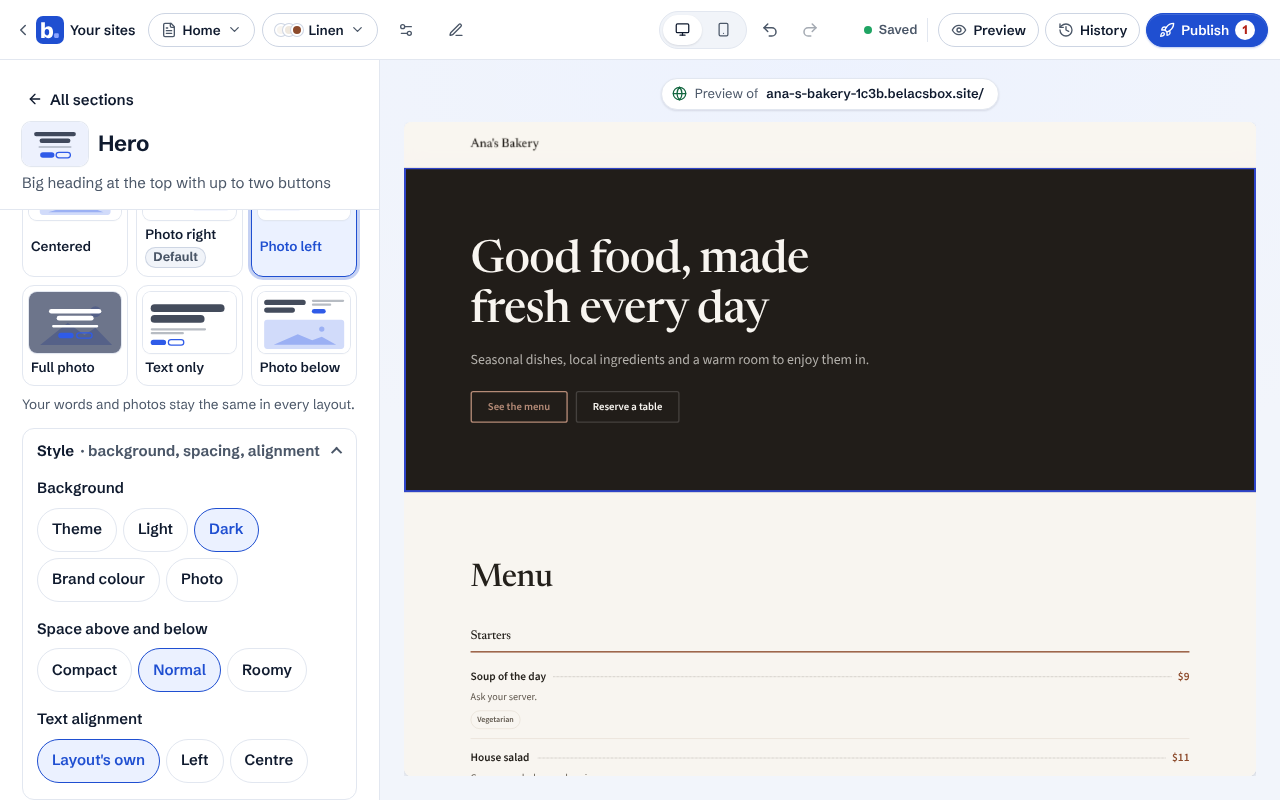
Every layout and style works in every theme, on phones, iPads and computers. Change your theme later and your picks stay.
Changed your mind? Click Undo at the top, or pick Theme under Background and the layout marked Default.
- Every plan gets every layout and every style.