List your upcoming events
Add classes, shows, open houses or workshops. Visitors see what's next, can add it to their calendar, and past events disappear by themselves.
In the editor, click Add a section, then Events (under Get in touch).
Pick the time zone your events happen in. Visitors see the times in that zone, with its short name, like 7:00 PM EST.
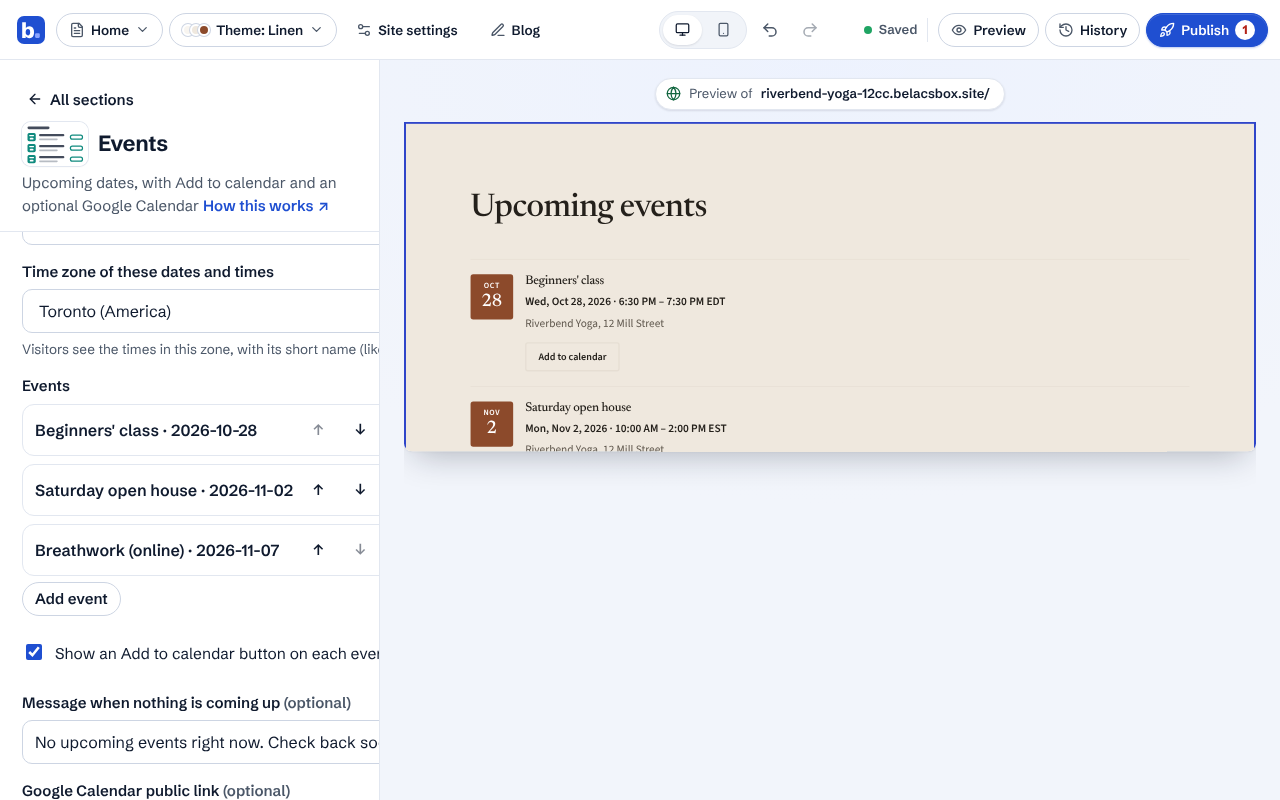
Click Add event. Give it a name, pick the date, and the start and end times. Leave the times empty for an all-day event. An end time earlier than the start means it runs past midnight.
Type where it happens. For an online event, tick This event is online and type the app (for example Zoom); put the joining link in the button.
Add a button if you like, for tickets, sign-up or details. It works like every other button: an https:// link, a page of your site, email or phone.
Check the preview. Events show soonest first. Each one has an Add to calendar button that saves it to the visitor's phone or computer calendar.
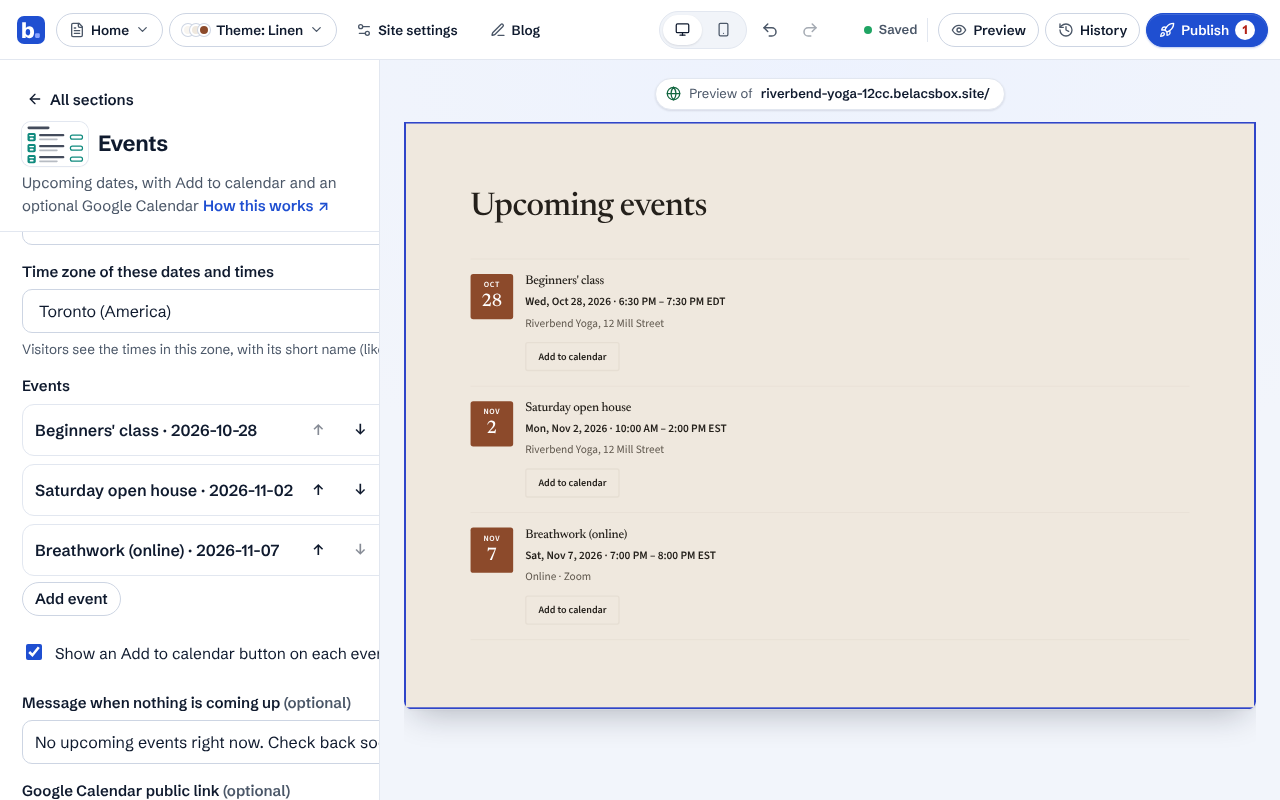
- Past events are hidden automatically: when an event ends it disappears from your site, and when nothing is left visitors see your "nothing coming up" message. Delete old events whenever you like; they are never shown again either way.
- Called off? Tick Cancelled. The event stays listed, marked Cancelled, without its button, so people who planned to come find out.
- Google can show your events in search results: we add the event details to your page in the format Google reads.
- Use a Google Calendar already? Make it public in Google Calendar (Settings, your calendar, Access permissions, Make available to public), copy "Public URL to this calendar" from Integrate calendar, and paste it into Google Calendar public link. Visitors press Show the calendar to load it.