Create your site
Pick a starting point made for your kind of site, pick a theme, then change the words to your own.
On Your sites, click New site (Build my first site when you have none yet).
Type your site's name: a business, brand or your own name. Under What's this site for?, you can pick Business, Personal or portfolio, Creator, or Community or nonprofit to see the closest starters (or keep Show all). Pick a starting point, or Blank page to start from one heading. Pick a theme: you can switch any time and your words stay put.
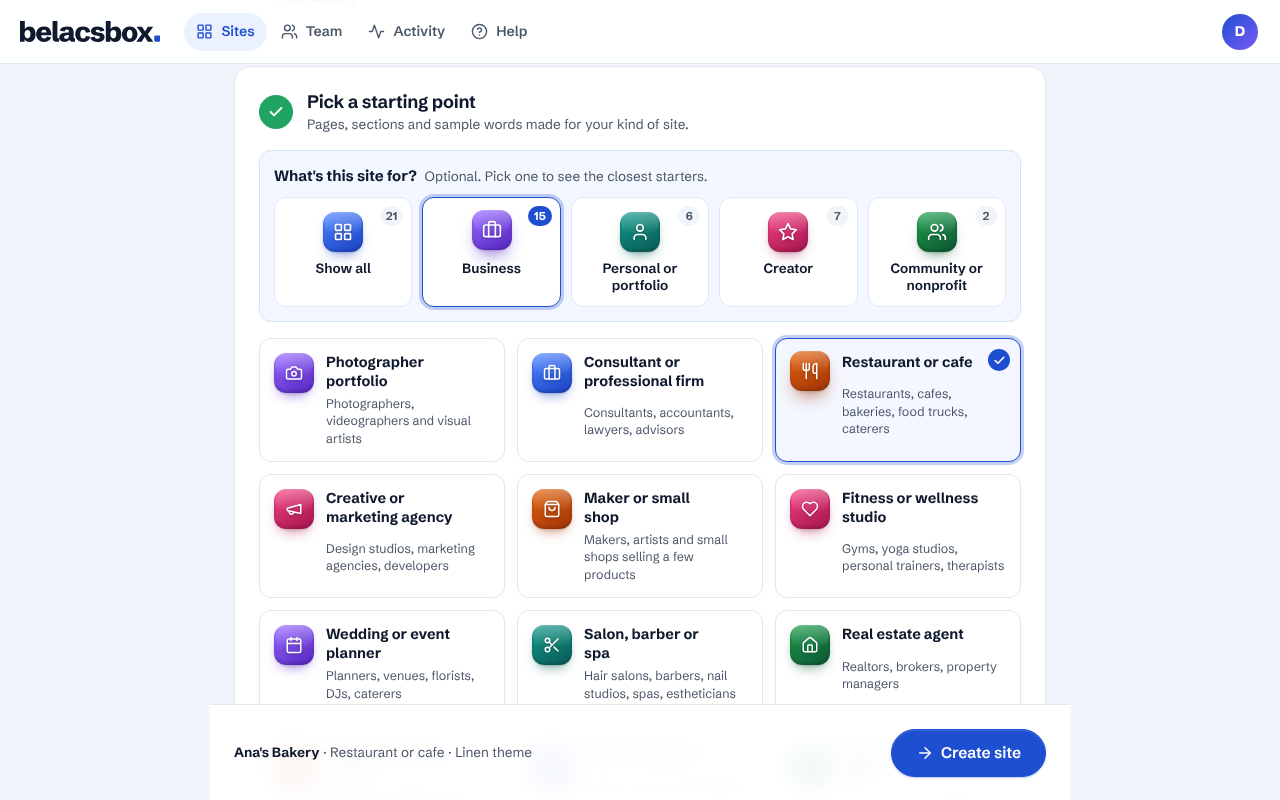
Click Create site. Your site starts with the starting point's ready-made words, ready for you to change.
The editor opens: your sections are on the left, your site is on the right.
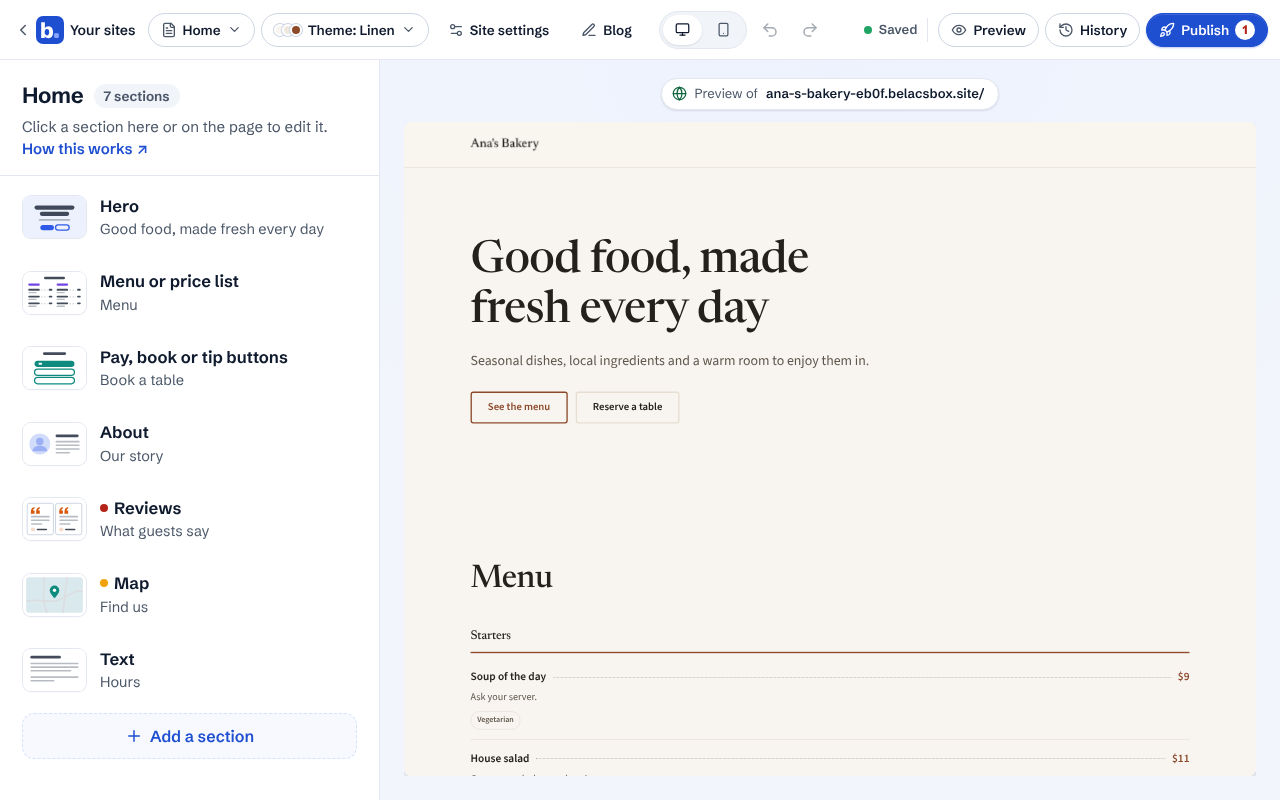
Click any section, on the left or on the page itself, and change its words. Everything saves on its own; the top bar says Saved, with a green dot.
Sections with a red dot still hold sample content (like sample reviews) and must be changed before your site can go live. An orange dot is a reminder.
To go back to all your sites, click ‹ Your sites at the top left (on a phone: the arrow and logo). Your changes are already saved.
- Only the account owner can create sites. Editors work on the owner's sites.